Wednesday, August 10, 2011

Getting SharePoint Feature IDs (the easy way)…


So I needed to grab the id of a feature so that I could programmatically activate it during a site / web provision process.  Google gives me a couple of lists with the standard features and ids.  It also tells me I can do a file contents search against the features directory once I’ve obtained the resource key from the global resources file (eek).

I wondered that, if in like rendering an OOB new/edit/display form, the SharePoint Developers at MS put the info I needed hidden in HTML?

Sure enough – the corresponding feature id is there as the ‘id’ of the div surrounding the button (input) element:

image

(Obviously, this only works for features that aren't hidden)

Thursday, August 4, 2011

Programmatically Enumerating Databases in SharePoint 2010

See below -

using (SPSite site = new SPSite(url))

{

    using (SPWeb web = site.OpenWeb())

    {

        SPFarm f = site.WebApplication.Farm;

        foreach (SPDatabaseService s in f.Services.OfType<SPDatabaseService>())

        {

            Console.WriteLine(string.Format("Found Database service {0} of type {1}",

                s.Name, s.GetType().Name));

            foreach (SPDatabaseServiceInstance spdsi in s.Instances)

            {

                Console.WriteLine(string.Format("|-Found Database Service Instance {0} ({1})",

                    spdsi.DisplayName, spdsi.Name));

                foreach (SPDatabase spdb in spdsi.Databases)

                {

                    Console.WriteLine(

                        string.Format("  |-DB: {0}\r\n    |-TYPE: {1}\r\n    |-HOST: {2} ",

                        spdb.Name.Length > 70 ? spdb.Name.Substring(0, 65) + "..." : spdb.Name,

                        spdb.GetType().Name, spdb.Server.Name)

                        );

                }

            }

        }

    }

}

Results look something like:

image

Breadcrumbs in SharePoint 2010

(That don’t require a click)


One of the biggest surprises I came across in moving to 2010 was the lack of breadcrumbs?!

I came across a few articles that explained/showed how you could enable v3 based controls to show – but these didn’t work on all pages.

Anyway, without spending hours of time testing – try this:

  1. Add reference to jquery (Master Page Edit, Control Delegate or inline content editor web part)
  2. Add the following Javascript (again – via a master page edit, control delegate or inline content editor web part)


$(document).ready(function () {
    $('table.s4-titletable > tbody > tr').append('<td id="crum"></td>');
    $('td#crum').html($('.s4-breadcrumb').html());
    $('td#crum li > span > span > img').first().css('top', '');
    $('td#crum span.s4-breadcrumbCurrentNode').css('font-weight', 'bold');
    $('td#crum span.s4-breadcrumbCurrentNode').css('color', 'gray');
    $('td#crum').css('white-space', 'nowrap');
    $('td#crum li').css('padding-right', '2px');
});


You should get a result similar to below:

(Yes, they are clickable / functional and completely dynamic)

image

Wednesday, July 27, 2011

Workflow ?

In an ideal world, workflows would not be required. Any business/system transaction could be executed immediately as the mechanism performing the transaction would have immediate/unlimited access to the data produced by sub systems, components and users it requires to perform said transaction.

In a realistic world, this isn't the case and we need a mechanism to perform a transaction over a period of time that can withstand server and/or system restarts. These time delays are generally due to the fact users or systems aren't always immediately available to provide the information required to the mechanism to complete the transaction. To overcome this 'workflows' provide just that - a tool to facilitate transaction state during long running transactions that can withstand server and system reboots.

Workflow should be used to maintain the state of this transaction where the business/system transaction is awaiting data from a sub system/user and no where else.
The ability of the workflow to provide time based execution is an unfortunate and misused side effect. Keep it real and use the right tool for the job.


Chris Rumel

Saturday, July 24, 2010

Hiding the special All Day Event, Recurrence, Workspace Calendar Fields from End Users

This one will be quick – I promise…

A common requirement encountered when demonstrating and/or implementing OOB WSS/MOSS calendars is to disable and/or hide one or more of those ‘special’ fields that make up the ‘Event’ content type.

image

I call these ‘special’ fields as they can’t be modified through the Web UI and are tied to some special functionality when used in conjunction with the calendar list.

The solution proposed *should* be possible to implement through the Web UI as long as you have permissions to modify pages and you have either:

  • Referenced a JQuery Library in your master page
  • Have a copy of the JQuery library somewhere in your _Layouts directory you can reference
  • Domain Policies and/or Corporate Firewalls will allow you to reference an externally hosted JQuery library

This solution has been developed under the assumption of the later. If none of these options are possible, I suppose the solution could be re-worked utilizing standard Javascript to achieve the same result.

Lets jump in…

Assuming the calendar you want to modify already exists, open the corresponding NewForm.aspx appending ‘?toolpanview=2’ to ht URL:

image_thumb59

This will allow you to edit the form without detaching it from the list definition.

Add a Content Editor Web Part and position it below the form itself. Edit the source and provide the following:


<script src="http://ajax.microsoft.com/ajax/jquery/jquery-1.4.2.min.js" type="text/javascript"></script>

<script type="text/javascript">

//Hide the ‘All Day Event’ Field:

//$("TABLE.ms-formtable>TBODY>TR:eq(5)").css('display', 'none');

//Hide the ‘Recurrence’ Field:

//$("TABLE.ms-formtable>TBODY>TR:eq(6)").css('display', 'none');

//Hide the ‘Workspace’ Field

$("TABLE.ms-formtable>TBODY>TR:eq(7)").css('display', 'none');

</script>

Couple of things to note here:

The first line is the reference to the external JQuery library as previously discussed. If you host a copy internally, change this to point to that. If your master page already references a JQuery library, omit it all together.

I have provided three lines of code in the secondary script block. (Two of which are commented out) These are explained inline above. Note that the JQuery hides rows of the form table based on index (defined by the final ‘:eq(n)’ JQuery selector clause). The indexes used above will hide the correct rows for an OOB ‘Event’ content type, but should be modified where this form has been modified through the addition of fields to the List or underlying content type.

Simply repeat the same step for the ‘EditForm.aspx’ Form and Bob’s your Mother or* Father’s Brother.

*replace with ‘and’ if your family is into that sort of stuff

The end result (for the code above with the hiding of the first two special fields being commented out) should look like:
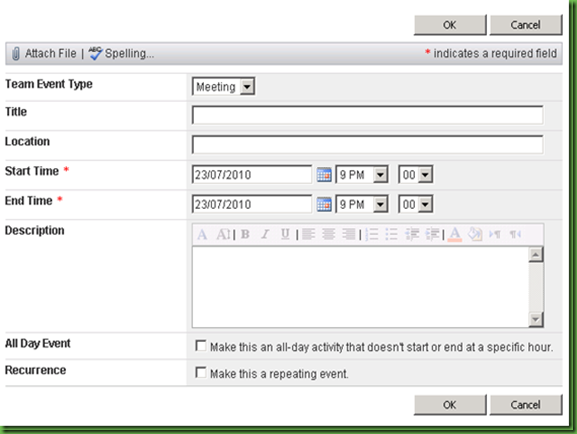
image_thumb64

Careful:

Note that while hiding the ‘All Day Event’ and ‘Recurrence’ fields through the Web UI will stop users from using this functionality when creating items using their browser, They options are still available to those users who have connected the calendar to their Outlook Client!